
UPDATE: 2023/05/07 07:30 EST BY SANUJ BHATIA
Following the launch earlier this year, the Nearby Share beta is now available in more countries globally.
For years, Android users have been longing for a tool like AirDrop, which allows users to easily share files between Apple devices. Google addressed this issue with the launch of Nearby Share in 2020. This feature works in a similar fashion, allowing Android devices to share files between them wirelessly. However, this technology was limited to sharing files between Android devices only.
In 2022, Google announced that it will bring Nearby Share to Windows, enabling users to transfer files between smartphones, PCs, and laptops. The wait is finally over, as Google has released the beta version of Nearby Share for Windows PCs, allowing users to transfer files between Android and Windows with just a click. In this article, we will take a look at how you can use the new Nearby Share tool.
Before we begin
Before we dive into the process of setting up the new Nearby Share tool on your Windows PC, here are a few things that you need to keep in mind:
- The Nearby Share tool is still in beta, so it may not always function as expected. However, many users say it works just fine.
- It is worth noting that the tool only supports the 64-bit version of Windows 10 and newer. ARM-powered Windows devices are not supported at the moment.
- The tool is compatible with all Android devices running version 6.0 or higher, which should cover the majority of Android devices available today.
- Following the software’s release in early 2023, Google the Nearby Share Beta tool is now available in the US and most countries globally.
- You will need to enable Bluetooth on both devices for Nearby Share to function correctly. For faster transfer speeds, connect both devices to the same Wi-Fi network.
- Lastly, it is worth noting that to ensure a successful transfer, both devices must be within a range of 16 feet (5 meters) of each other.
How to set up Nearby Share on Windows PC
Let’s start by setting up Nearby Share on your Windows device. Here’s a step-by-step guide on how to do it:

- First, head over to Google’s Nearby Share website on a compatible Windows device.
- Click the “Get Started” button and download the software. Once downloaded, install the file.
- Nearby Share application will now open up on your device. You can either choose to sign in with your Google account or use the app without an account.
- For a seamless file-sharing experience, we suggest signing in with your Google account, as file transfers are automatically accepted when signed in.
- Once logged in, you can set up Nearby Share as per your preferences. Choose a name for your PC and set your visibility preferences as “Everyone,” “Contacts,” “Your devices,” or “No one.”
- Once you have completed the required steps, click on the “Done” button, and you are all set to start transferring files.
How to share files from Android to Windows
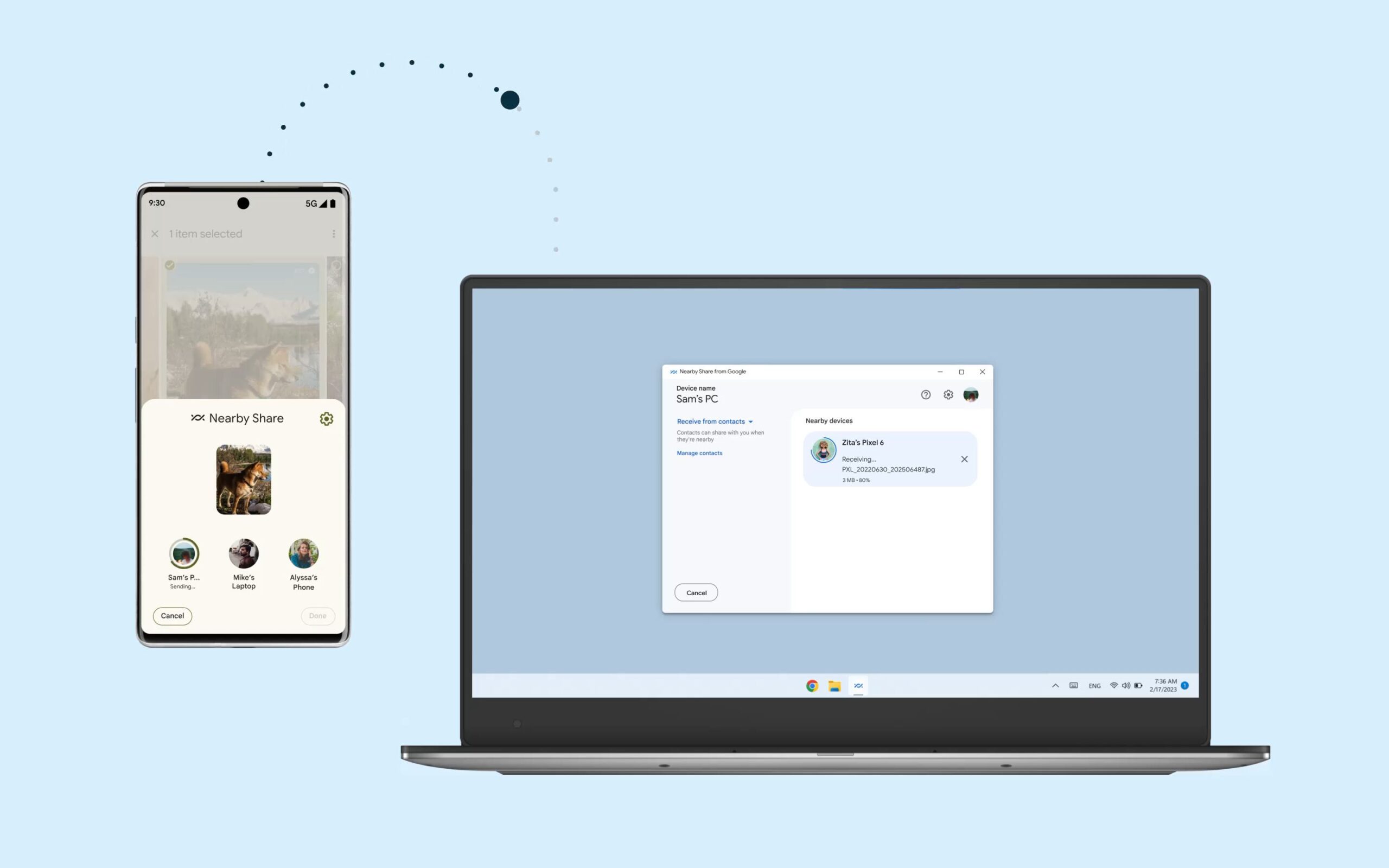
To transfer a file from your Android device to your Windows device using Nearby Share, first, select the file on your Android device. In this example, we will use Google Photos to share a few photos. Once you have selected the desired files, tap “Nearby Share” in the share sheet and select your Windows device from the list of available nearby devices.
Now open the Nearby Share app on your Windows PC. The Nearby Share app will show up in the system tray on your Windows taskbar. Accept the request and the transfer should start immediately. If you’re signed in with the same account as your Android phone, the transfer will be accepted automatically. As mentioned above, the speed and time of the transfer will vary depending on your Wi-Fi connection. Once the transfer completes, your file will appear in the “Downloads” folder.
How to share files from Windows to Android
Transferring files from a Windows PC to an Android smartphone is also a simple process. In the File Explorer, right-click on the file that you want to send to your Android smartphone and select “Send with Nearby Share.” The Nearby Share app will open, where you can select your Android device. The Nearby Share app will open, and you can choose your Android device from the list. Once you have selected your device, the file transfer will commence immediately. Similar to Windows, this shared file will also be saved in the “Downloads” folder on your Android device.
Nearby Share is like AirDrop for Android and Windows
On the whole, Google’s new Nearby Share makes it very easy to transfer files between Android and Windows PC. For additional features such as notification syncing, messaging, and call answering, you should consider using the Intel Unison app since it offers a lot more features. However, for those who simply need to transfer files, Nearby Share is an excellent and convenient option.
-
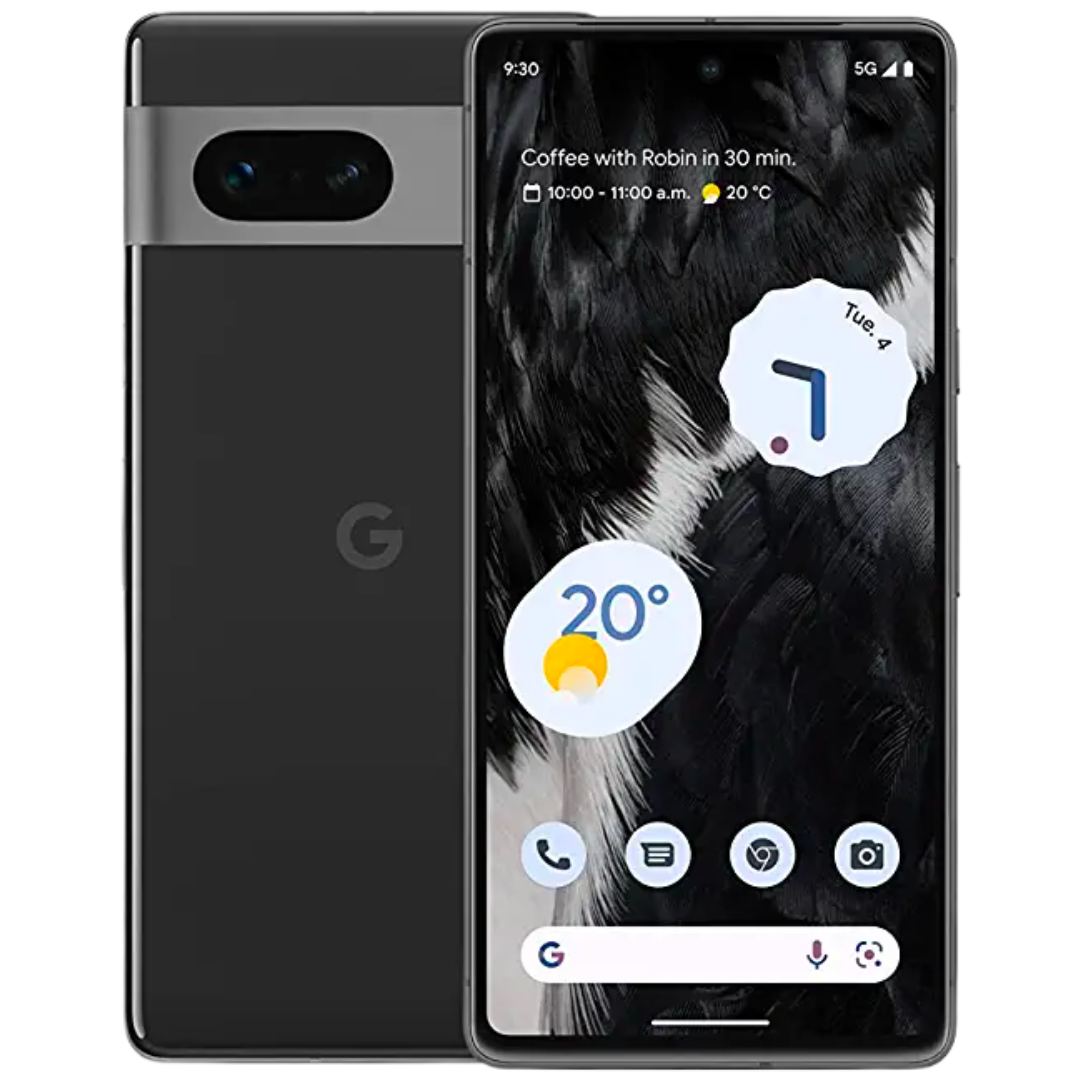
Google Pixel 7
The new Google Pixel 7 is powered by the all-new Google Tensor G2 chipset. The device is coupled with 8GB of memory, and it has 128/256GB storage tiers. The phone comes with a significantly improved camera system, and it’s more portable than the last generation. The Pixel 7 is available in Obsidian, Lemongrass, and Snow colors.
-
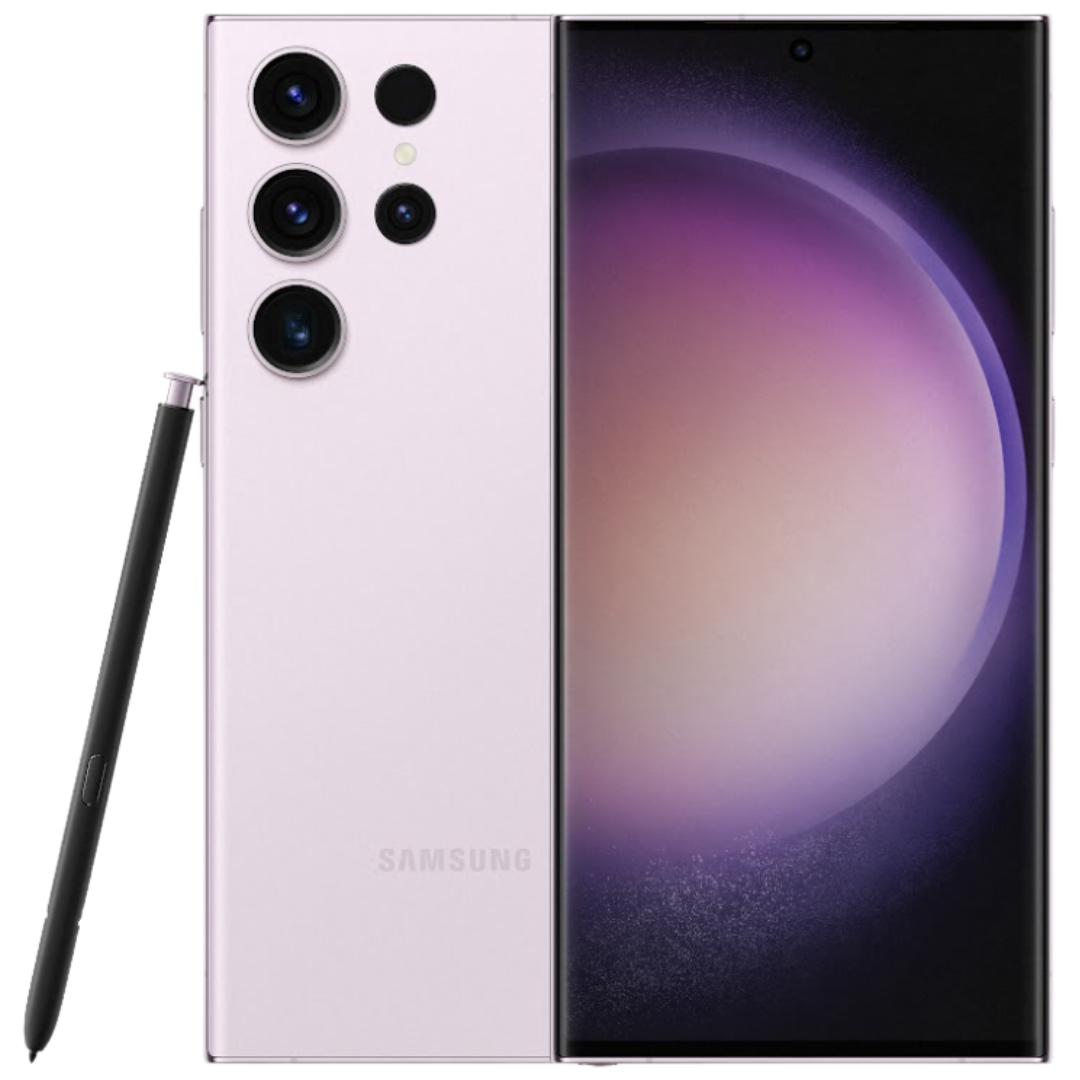
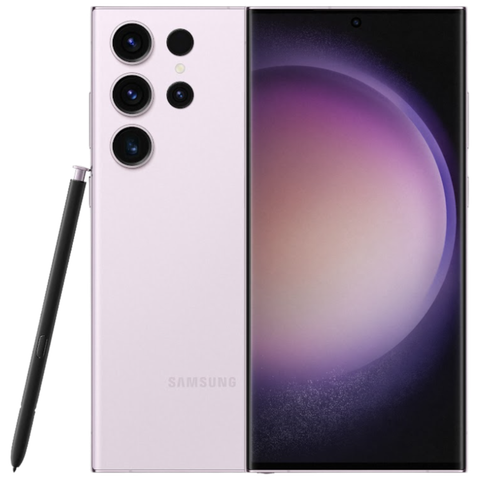
Samsung Galaxy S23 Ultra
$900 $1200 Save $300
The new Galaxy S23 Ultra is the go-to flagship from Samsung in 2023. It’s powered by the new Snapdragon 8 Gen 2 chipset, carries the same price tag as its predecessor, and has improved gaming and camera capabilities to let you capture the perfect moment.
-
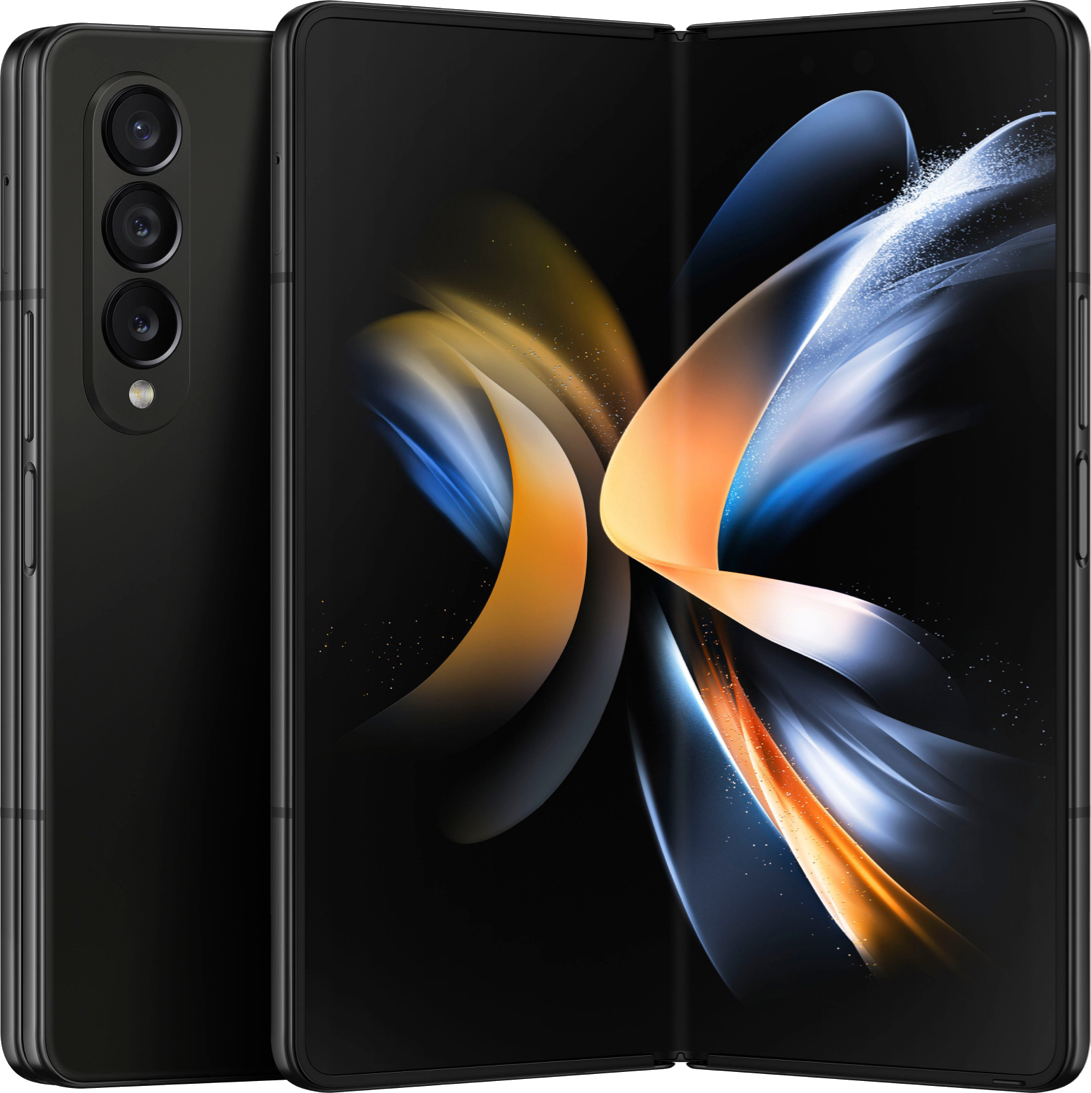
Samsung Galaxy Z Fold 4
The latest Samsung Galaxy Z Fold 4 comes with the most powerful Qualcomm SoC, a wider display, a better hinge mechanism, and many significant upgrades over its predecessor.


Credit : Source Post